The first task is to ensure that the camera and your display device are in the same local area network, whether it is connected through a router or PoE switch. Next, you must log into the camera’s web browser management interface via the IP address. In the camera’s network settings, remember to create a special ONVIF user account and set a separate password for authorization. This account password is usually not the same as your main administrator login password, and many novices will confuse it here. After the configuration is complete, confirm the ONVIF port number, and then use third-party VMS software such as Blue Iris, iSpy, or ONVIF Device to “search” the device Manager this diagnostic tool. As long as you enter the IP of the camera and the newly set ONVIF credentials, the software will automatically capture the RTSP stream address, so that you can smoothly see high-definition images on different platforms.
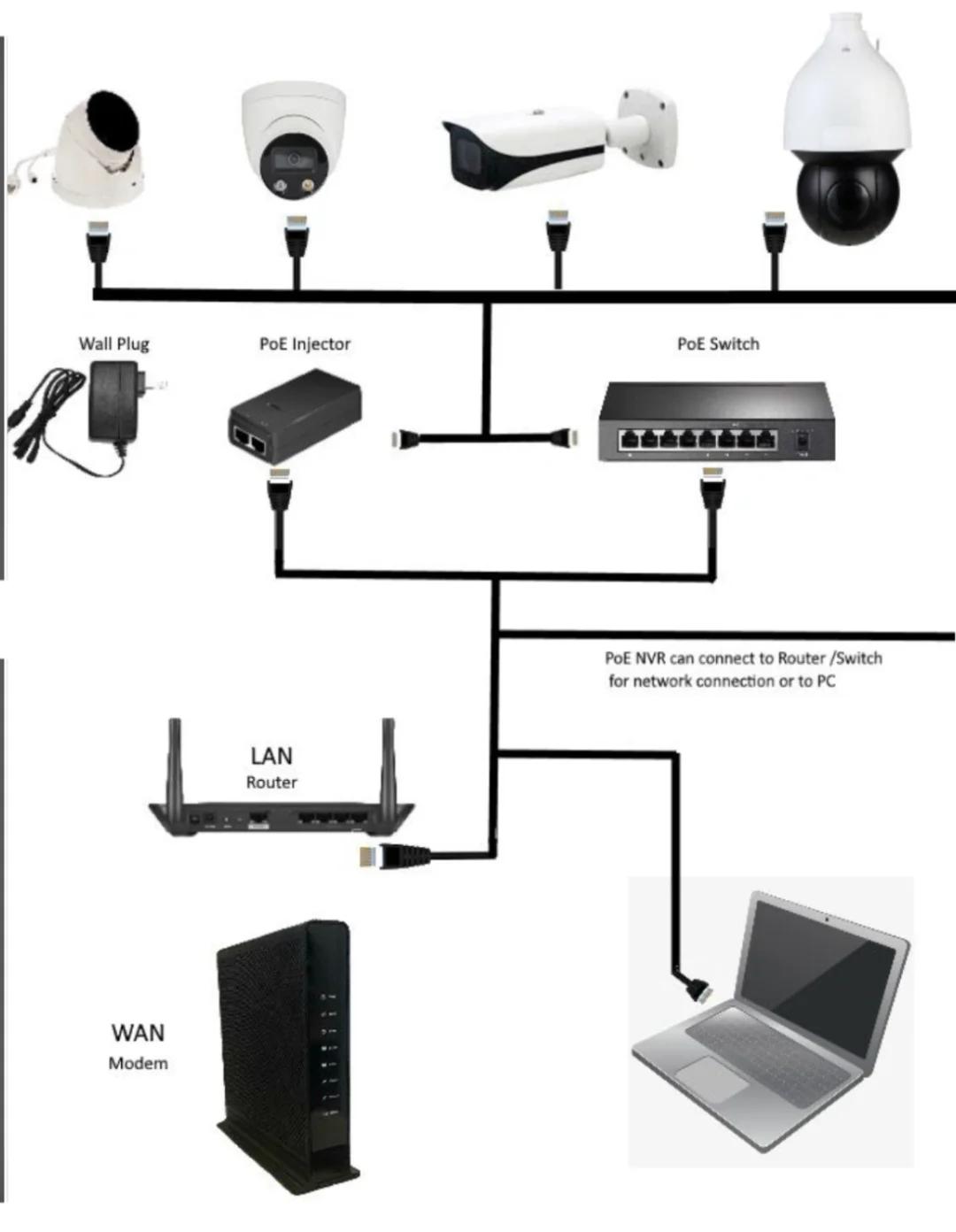
Lay The Foundation Of Physical Layer And Network Layer
Connected via a PoE switch: Professional-grade cameras are mostly powered by PoE. The PoE switch is not only used to transmit data, it can provide stable power support. In the equipment search and discovery stage, if the power supply is unstable, the camera frequently dropped will make you doubt life.
Router Configuration: Be sure to confirm that the IP address assigned by the DHCP server of the router is in the same subnet as your computer or NVR, otherwise the error of “no device found” will be enough for you to toss for half a day.
Login To The Web Interface And Activate The Agreement
After the hardware is connected, the next way is to enter the internal settings of the camera.
IP address search: first use the IP scanner to pick out the current IP of the camera.
Security default settings: the current equipment for network security, the factory protocol is blocked. You have to log into the Web background with the camera’s original credentials, find the integration protocol option in the “Network” or “Advanced Settings” menu, and manually turn the ONVIF switch to “Enable”. If you want different brands of equipment to “shake hands”, this step is a dead order.
Configure ONVIF Credentials And Identify Ports
In the field of surveillance, safety is always the first. It’s not enough to just open the protocol, you have to handle the authorization verification.
Dedicated ONVIF users: In professional practice, I strongly recommend creating a separate ONVIF user account. The password of this account is for third-party integration, and it is best to separate it from the password of the main administrator.
Port mapping: Find the specific ONVIF port number. Although 80 ports are common, many high-security systems use 8080, 8899, or 8000. To figure out this port is to get the key to the third-party VMS software to accurately “knock on” the camera door.
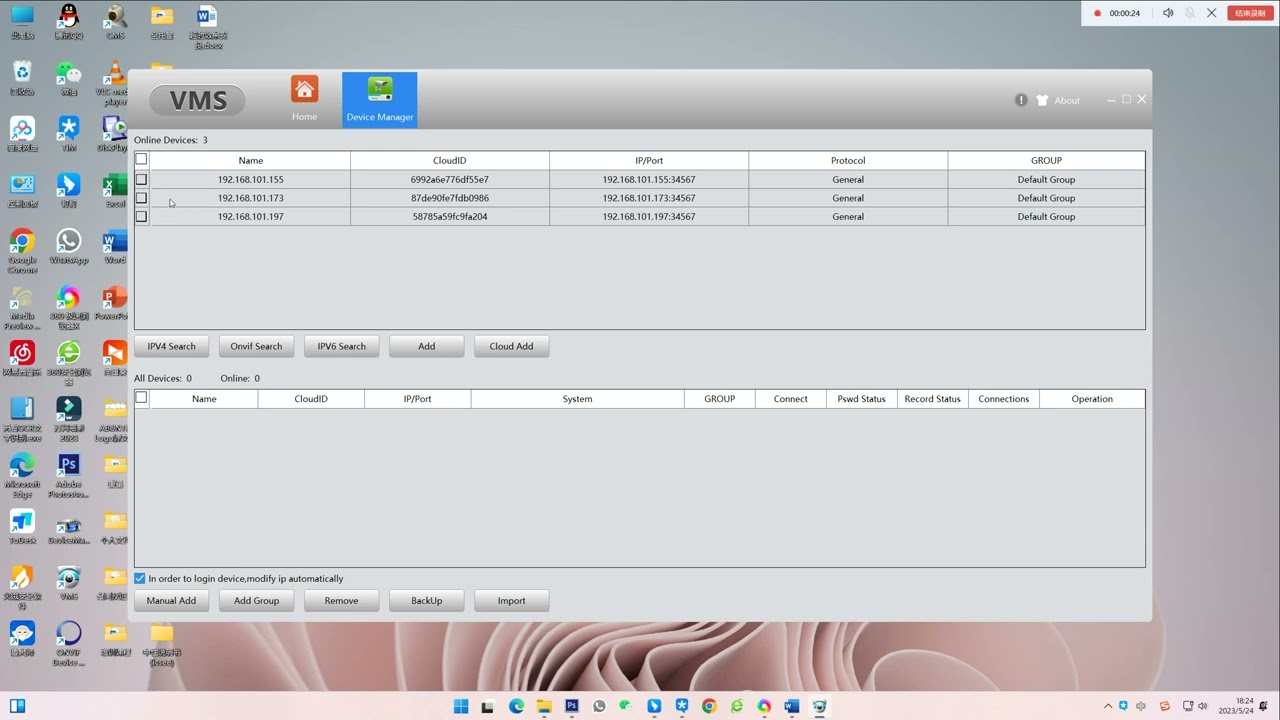
Search Discovery And Third-Party VMS Integration
The agreement has been opened and the account number has been established. Now you can hang up the camera on the platform you have chosen.
Using diagnostic tools: ONVIF Device Manager is recommended, which is recognized as the “gold standard” in the industry. If the camera can show its face here, your settings are basically no problem.
VMS software configuration: When adding devices to Blue Iris or iSpy, select ONVIF as the protocol. Fill in the IP, port and ONVIF credentials you just set up, and the device can run.
The Final Extraction Of RTSP Stream To Achieve Seamless Viewing
After all this time, the ultimate goal is to get the video stream. The last step of the ONVIF protocol “handshake” is to spit out the RTSP stream address.
The software will automatically generate a string similar to rtsp:// username:password @ IP:554/live. This RTSP link is the real carrier of high-definition video data. As long as this link is established, no matter what platform or brand you use, seamless monitoring and recording can be realized. At this step, your security system is truly optimized and interconnected.
Author : David Miller
I’ve spent years troubleshooting network protocols and integrating high-performance hardware from brands like Bit-CCTV into seamless, unified monitoring systems. My goal is to bridge the gap between complex engineering and practical application, helping both professionals and DIY enthusiasts build more reliable security environments.



 English
 日本語
日本語 한국어
한국어 français
 Deutsch
 Español
 italiano
 русский
 português
 العربية
 tiếng việt
 ไทย
ไทย čeština
 dansk
dansk Svenska