For efficient control, the first step is to establish a “hardware handshake” between the camera and the keyboard console via an Ethernet cable (for IP/NDI models) or an RS232/RS485 serial line “. In this step, the communication protocol (such as VISCA, Pelco-D or ONVIF) and baud rate (serial port is usually 9600 bps) must match exactly on both ends of the device.
Once the connection is active, you can control the horizontal and vertical rotation through the joystick by pressing the corresponding Camera ID key on the keyboard, twist the joystick knob or use the zoom rocker to adjust the zoom.
For the operation of the pursuit of broadcast-level effects, the core technology is actually the preset position: first manually find a good angle, press and hold the “Set” key plus the number key to save, and then simply press that number to instantly “call” the screen.
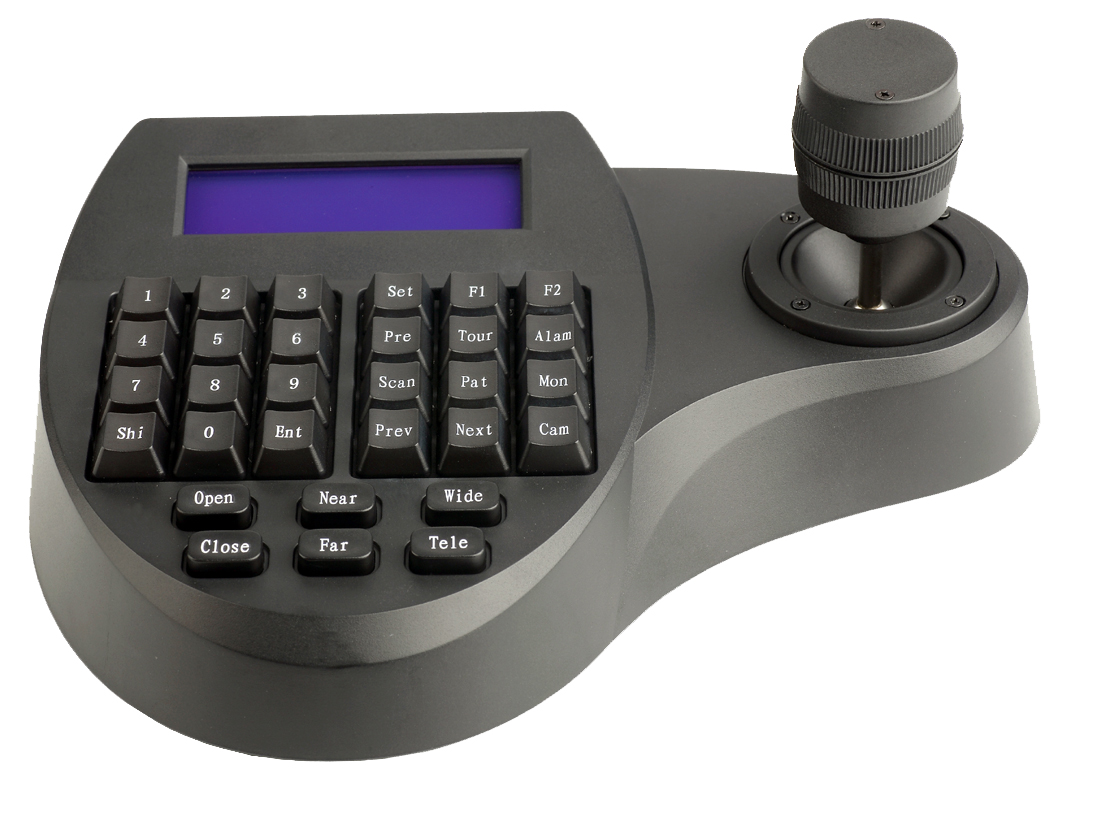
Step 1: Establish A Hardware Connection
The basis of PTZ control is a stable physical connection. Depending on the hardware ecology you have at hand, there are usually two mainstream solutions:
1.1 IP-based connectivity (Ethernet/NDI)
For modern IP or PTZ cameras that support NDI, the camera and console are directly connected to the same switch with a standard Cat5e or Cat6 network cable. This method is the first choice for remote deployment, and supports PoE (Power over Ethernet), which allows you to pull a lot less power cords, and the field wiring will be much more refreshing.
1.2 serial port connection (RS232/RS485)
If it is an old system or a point-to-point direct connection environment, RS232 (short distance) or RS485 (long distance, theoretical up to 1.2 kilometers) is usually used. If you plan to use a console to control multiple cameras, remember to check that the “In” and “Out” ports are properly connected in a “hand-in-hand” daisy-chain.
Step 2: Configure The Communication Protocol And Baud Rate
If the physical line is connected, it does not mean that it can be connected. Devices must “speak the same language”.
Select Protocol: Enter the OSD (On Screen Display) menu of the console. Serial port connection generally runs the industry standard of VISCA or Pelco-D. If it is network control, be sure to confirm that ONVIF or the IP protocol developed by the manufacturer has been turned on.
Align baud rate: This determines the rate of data transfer. For most serial PTZs, the baud rate of the camera and keyboard must be set to 9600 bps simultaneously. To tell the truth, novices are most likely to stumble here. As long as one end is set wrong, the camera will not respond to your instructions at all.
Step 3: Camera Selection And Basic Control
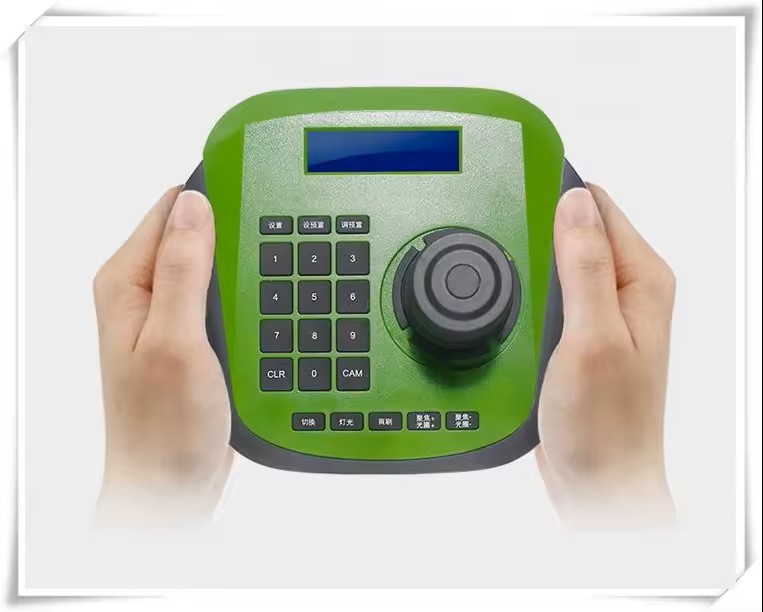
After the “handshake” is successful, you have to tell the console which camera you want to move.
Assign and select Camera ID: Each camera in the system should have a unique ID (such as machine 1 and machine 2). Press [CAM ID] on the keyboard or a specific number key to gain control of the device.
Play with the rocker: Horizontal and vertical: the left and right break of the rocker is horizontal rotation, and the up and down push is vertical pitch. High-end consoles are usually pressure sensitive-the harder you break, the faster the camera will turn.
Zoom Control: Most consoles support twisting the joystick knob to zoom (zoom in clockwise, push out counterclockwise), or use the dedicated zoom lever next to the joystick.
Step 4: Advanced Operations-Set And Call Preset Bits
It allows you to skip the embarrassment of finding the picture manually and cut directly to the ideal composition.
How to set the preset position: first use the joystick to adjust the picture to the perfect angle (including horizontal, vertical and focal length). Press and hold the Set (or Preset) key while you press a number key (for example, 1). OK, this position is saved.
How to recall preset position: directly click the number key “1” or press “Call” “1”. The camera moves automatically, accurately, and quickly to a pre-stored location. This is much more stable than you use the rocker to find the position manually, and there will be no “lens shaking feeling” that is common in manual operation “.
Final Checklist To Ensure Success
In order to ensure that your PTZ control system does not fall off the chain at critical moments, I suggest that you check before starting up each time:
Cable integrity: Check for loose Ethernet or serial connections.
Protocol consistency: Confirm whether parameters such as VISCA/Pelco-D are completely aligned.
Stable power supply: Ensure that the camera and console have sufficient power, especially when PoE power supply is used, the power budget of the switch should be sufficient.
Author: Marcus Thorne
With over 12 years of hands-on experience in the R&D and integration of PTZ camera systems, I specialize in helping professionals bridge the gap between complex hardware and seamless live production. I spend my days testing communication protocols and optimizing joystick controllers to ensure our users get the most precise movement and reliability out of their equipment. I wrote this guide to provide you with a clear, manufacturer-level understanding of how to set up your PTZ ecosystem, ensuring your hardware ‘handshake’ is flawless every time.



 English
 日本語
日本語 한국어
한국어 français
 Deutsch
 Español
 italiano
 русский
 português
 العربية
 tiếng việt
 ไทย
ไทย čeština
 dansk
dansk Svenska